📌 Basic S Pen Features
**1. Built-in Stylus
**
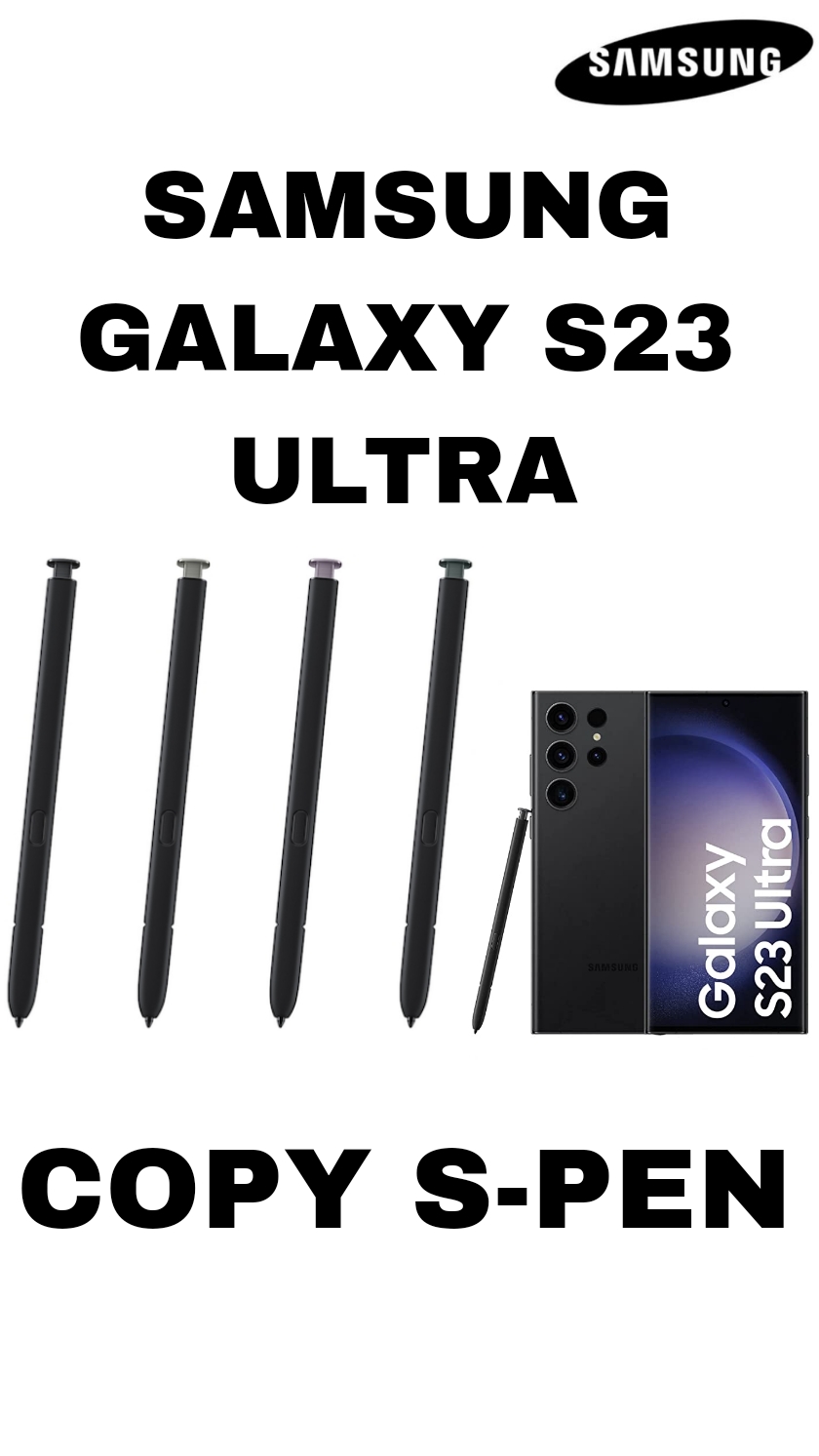
The S Pen is a stylus that comes with the Galaxy S23 Ultra and fits into a dedicated slot in the phone. This means you always have a pen ready when you need it.
**2. Pressure Sensitivity
**
It has 4,096 pressure levels, giving a natural pen-on-paper feel when writing or drawing. That helps with precision — light pressure makes thin lines, firmer pressure makes thicker lines.
**3. Fine Tip
**
The tip of the S Pen is about 0.7 mm wide, which helps with very accurate writing, sketching, and artwork on the phone screen.
**4. Water Resistance
**
The S Pen has an IP68 water-resistance rating, so getting a bit wet won’t immediately damage it — but you should still dry it before use.
🖊️ What You Can Do With the S Pen
✍️ Writing & Notes
-
Write notes by hand inside Samsung Notes.
-
Use Screen-off Memo to write on the lock screen without opening the phone.
-
Handwriting can automatically convert to standard text in many places (like search or messages).
📸 Remote Control
-
The S Pen can work as a remote control using a button or air gestures:
-
Take photos remotely
-
Play/pause music
-
Control slides in a presentation
(Note: Some remote features may vary by app.)
-
📷 Smart Select & Text Tools
-
Smart Select lets you use the pen to draw around part of the screen and extract a screenshot or create GIFs.
-
You can select text from images and copy it to the clipboard or even add it to your calendar.
🖼️ Creative & Productivity Tools
Using the S Pen gives you special tools like:
-
Screen Write: take a screenshot and write or draw on it.
-
Live Messages: draw handwritten messages or animations.
-
Translate: highlight text to translate it (dependent on software).
-
Air Command: quick menu for tools and apps.
These enhance drawing, editing, messaging, and multitasking.
✨ Additional Features
-
Hover & Air View — hover the S Pen over the screen to preview content.
-
Glance — peek at another app without fully switching.
-
Unlock with S Pen — unlock the phone using the pen button.
-
Pen Select — quickly select text or items by dragging the pen over them.
⚡ Charging & Pairing
-
The S Pen pairs and charges when inserted into the phone’s S Pen slot.
-
You don’t need to worry about charging it separately — just return it to the phone.
📝 Quick Summary
Samsung Galaxy S23 Ultra’s S Pen gives you:
✔ Natural, pressure-sensitive writing and drawing
✔ Screen-off notes and handwriting-to-text conversion
✔ Remote control for camera and media
✔ Special tools like Smart Select, Screen Write, and Air Command
✔ Extra multitasking productivity features
Be the first to review “SAMSUNG GALAXY S23 ULTRA COPY S PEN”
Related products
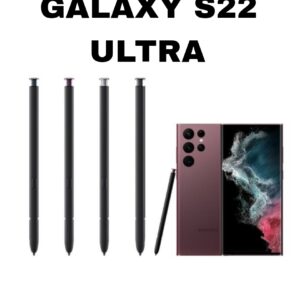
COPY S PEN
SAMSUNG GALAXY S22 ULTRA COPY S PEN
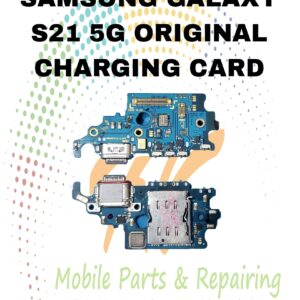
CHARGING CARD
S21 5G ORIGINAL CHARGING CARD
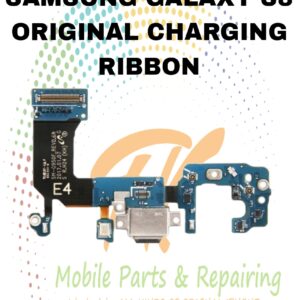
RIBBONS
S8 ORIGINAL CHARGING RIBBON
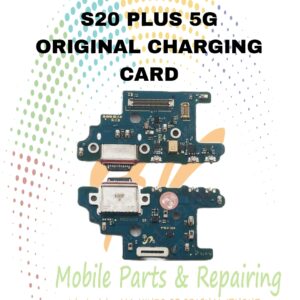
CHARGING CARD
S20 PLUS 5G CHARGING CARD
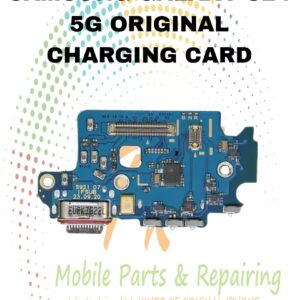
CHARGING CARD
S24 5G ORIGINAL CHARGING CARD
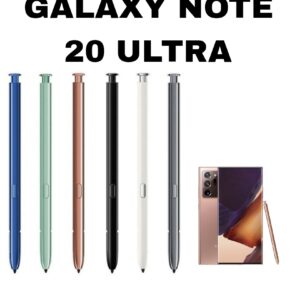
COPY S PEN
SAMSUNG GALAXY NOTE 20 ULTRA COPY S PEN
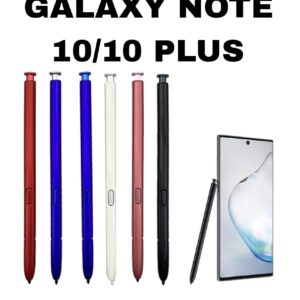
COPY S PEN
SAMSUNG GALAXY NOTE 10/10 PLUS COPY S PEN
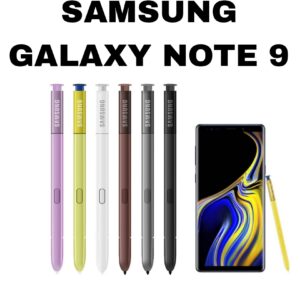
COPY S PEN
Reviews
There are no reviews yet.